Set up subZwallet: Shopify subscription app setup in under 15 minutes
You picked a subscription app. Now it needs to actually work with your store — right payment gateway, compatible theme, correct staff permissions — before a single customer can subscribe. Skip any of these and you hit a wall at checkout.
This guide walks you through subZwallet setup from install to first live subscription plan. Most merchants finish in under 15 minutes. If you are migrating from another app, the steps are the same — but you should also read our migration playbook: Migrating from Recharge? See our migration playbook.
Pre-flight checklist: three things to verify before you install
Shopify subscriptions require a compatible payment gateway. Shopify Payments is the simplest option. If you use a third-party gateway, confirm it supports Shopify's subscription billing contracts — PayPal Express, Stripe via Shopify, and Authorize.net work; many regional gateways do not. Check Shopify's subscription setup documentation for the current list (https://help.shopify.com/en/manual/products/purchase-options/subscriptions/setup).
Use this checklist before installing:
- Payment gateway: Shopify Payments enabled, or a third-party gateway confirmed compatible with subscription contracts. Go to Settings > Payments in your Shopify admin to verify.
- Theme compatibility: Your theme must support Online Store 2.0 app blocks. If your theme was published after June 2021 or uses JSON templates, you are set. Older Vintage themes require manual Liquid edits. Confirm via Online Store > Themes > Customize — if you see an "Add block" option in the theme editor, app blocks are supported (https://shopify.dev/docs/apps/build/online-store/theme-app-extensions).
- Staff permissions: The account performing the install needs Apps permission and Manage and install apps & channels. Go to Settings > Users and permissions to confirm. Additional staff who manage subscriptions need at least Products and Orders access.
All three must be in place. If your gateway is incompatible, no subscription checkout will complete. If your theme lacks app block support, the subscription widget will not render on product pages.
Step-by-step: Install and configure subZwallet
- Open the Shopify App Store, search "subZwallet," and click Install. Approve the requested permissions when prompted.
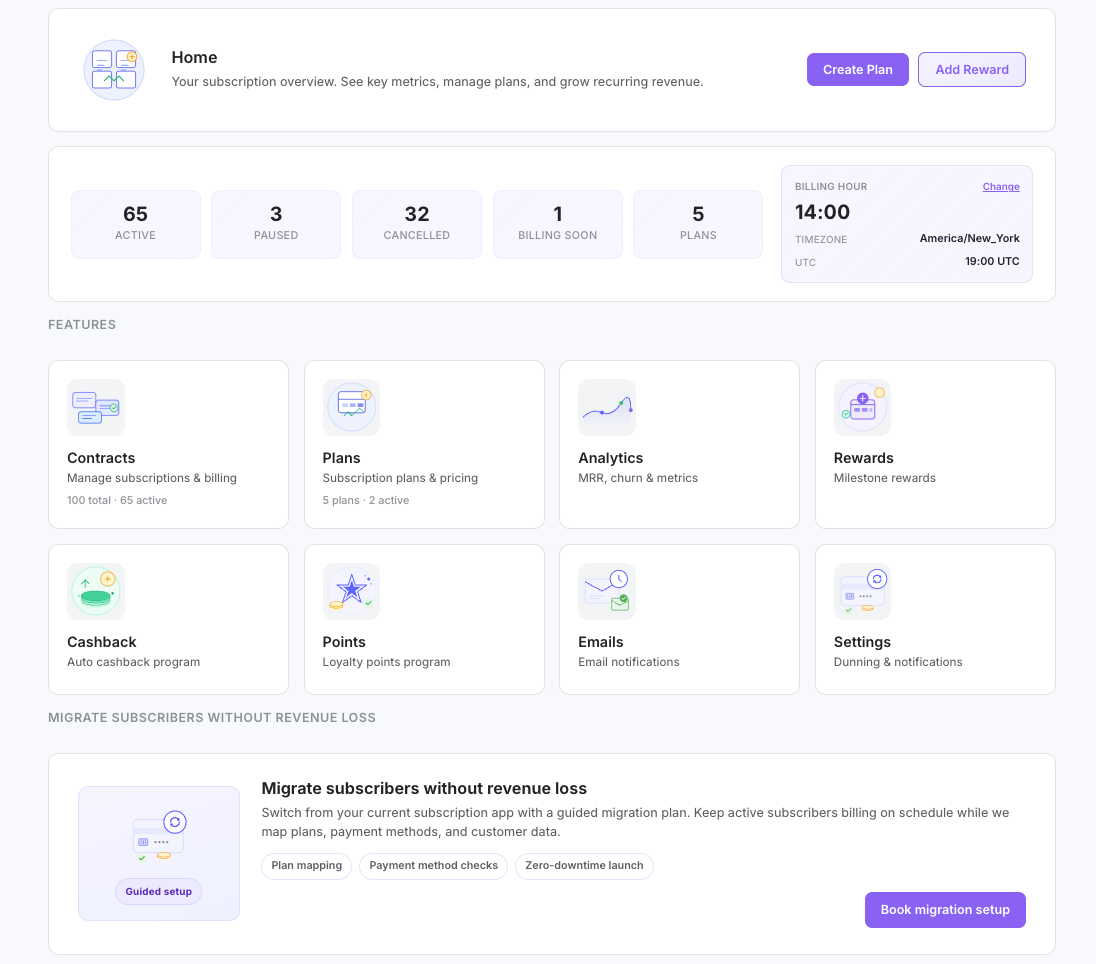
- After install, open the app from your Shopify admin sidebar: Apps > subZwallet. The dashboard (Home) loads with onboarding suggestions tailored to your store.
- Go to Online Store > Themes > Customize. In the product page template, click Add block, select the subZwallet subscription widget, and position it below the Add to Cart button. Save.
- Return to subZwallet and navigate to Subscription Plans. Create your first selling plan: set the delivery frequency (e.g., every 30 days), configure any subscriber discount, and attach at least one product.
- Preview a subscription-enabled product on your storefront. Add it to cart using the subscription option and complete a test checkout using Shopify's Bogus Gateway or a test credit card.
- Once the test order confirms, your setup is live. Switch to a paid plan or continue on Free (up to 50 subscriptions) to start accepting real subscriber orders.

Plan comparison: Free, Launch, Growth, and Scale
Your first paid plan includes a free trial: 14 days on Launch or Growth, 30 days on Scale. Every paid plan also includes a dedicated developer and account manager for your shop. Pick the tier that matches your current subscriber count and the features you need today — you can upgrade anytime without losing data.
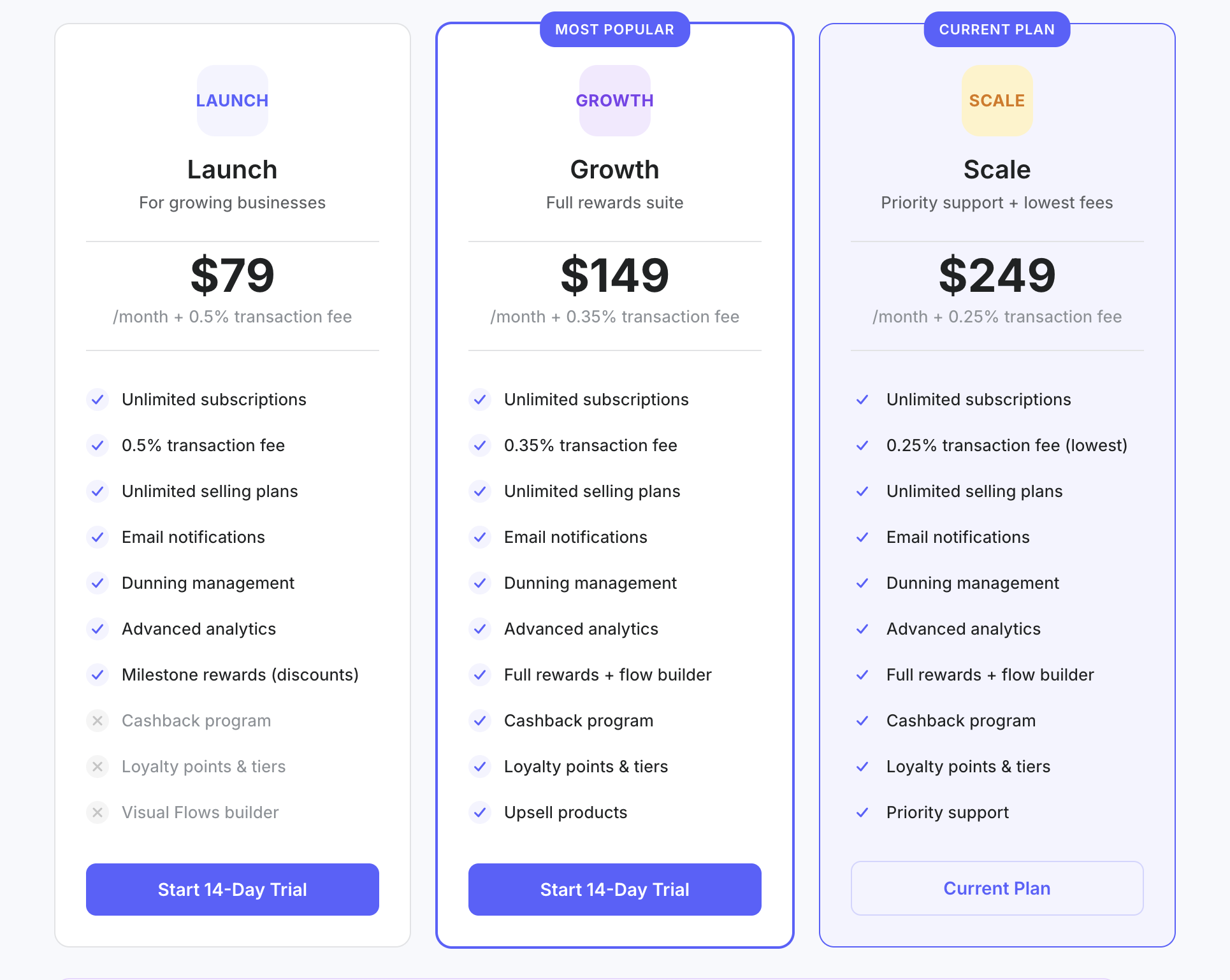
If you have fewer than 50 subscribers, Free gives you full subscription management and the points program at zero cost. Launch makes sense once you need analytics and milestone-based retention. Growth unlocks the full loyalty toolkit. Scale is for high-volume stores that benefit from the lowest fee rate, priority support and a dedicated Slack channel.
Next steps
- Create your first subscription plan — walk through frequency, discounts, and product attachment in the Subscription Plans guide.
- Understand how billing and renewals work by reviewing How to create your first subscription.
- Compare plans in detail on our Plans and Pricing page to choose the right tier.
- Migrating from Recharge? See our migration playbook for step-by-step data transfer and subscriber cutover instructions.